
 SystemTrayMenu
 3
Help
Set up, use, adjust. Where a system differs, it says so.
First steps
Install
Download and open it. Windows and Linux: at the first start the program sets itself up, with an entry in the Start menu or app list. Mac: drag SystemTrayMenu to “Applications” and start it there, the first time this guide helps.
Open the menu
Click the icon in the notification area (Mac: in the menu bar) or use the shortcut: Windows Ctrl+Win, Mac ⌃⌥, Linux Ctrl+Win+M. Press the two modifier keys together and let go. At the first start a short hint shows where the icon is.
Choose the menu folder
At first the menu shows your desktop. Your own folder: Settings → Folder → Menu folder → “Change …”. Keep it in OneDrive, iCloud or Dropbox and every computer has the same menu. If the folder is missing (e.g. drive unplugged), the menu offers “Choose another menu folder” at the bottom.
Settings
Right-click the icon → “Settings …” or “…” at the top of the menu → “Settings …”. Look, sizes and what the menu shows apply at once, everything else when you close the window.
Start with the computer
Settings → General → Startup → “Start at login”. It is off out of the box.
Enter the license
For 14 days everything works without one. Then: Settings → About → License → “Paste” (text from the purchase mail) or “Choose file …”, or drop the
.licfile onto the window. In your Downloads folder the program picks it up at start by itself. For all users of a computer, for example in a company, put the file once into the shared license folder (see “Differences per system”); a user’s own license comes first. From the Microsoft Store you need none: you buy it there.
Using the menu
Every folder opens as a column of its own, and so does a ZIP archive: files in it open as an unpacked, read-only copy, and nothing in the archive itself can be changed. The menu stays open until you open something, click elsewhere or press Esc.
Keyboard
| Key | What happens |
|---|---|
| ↑ ↓ | Select an item, at the end it wraps around. A selected folder shows its contents right next to it. |
| Shift+↑ ↓ | Select several items: takes in the items on the way, also with Home, End, Page Up and Page Down. An arrow without Shift clears the selection. See Mouse → “Select several”. |
| → ← | Into the selected folder or back; the selection lands on the folder open there, otherwise on the first entry. Where the submenu opens to the left (Mac, at the screen edge) it is the other way round: the keys follow the arrow at the folder. |
| Enter | Open the file. A folder opens in Explorer or Finder, with nothing selected the menu folder itself. A folder found by typing opens its submenu instead, where typing searches on (keypad: number, Enter, number, Enter). On a separator with a title: fold or unfold its group. |
| With “Icons only” | The icons form a grid: ← → select the icon next to it, ↑ ↓ the nearest one in the line above or below, Page Up Page Down jump 10 lines. Enter goes into a folder (instead of opening it in Explorer or Finder, double-click or the context menu do that then), ← at the start of the line goes back; where the submenu opens to the left it is → at the end of the line. |
| Typing | Search, see Search. |
| Esc | Clear the search and close the search field, a second press closes the menu. |
| Tab, Shift+Tab | Next or previous column. With a search, the first Tab selects the search text. |
| Home End | First or last item, Page Up Page Down jump 10 items (Mac: fn and an arrow key). |
| Ctrl+S (Mac ⌘S) | Open the search field like the magnifier at the top left; a search text in it gets selected, typing replaces it. Ctrl+F works too, Ctrl+A only selects. |
| Ctrl+V (Mac ⌘V) | Paste text into the search. With files copied or cut in Explorer or the file manager on the clipboard, it pastes them into the column’s folder instead; files copied in Finder too, numbered when the name is taken (“Name 2”). A copied web address goes into the column’s folder as a link, as when dropped in. |
| Delete (Mac also ⌘⌫) | Move the selected item to the trash, with several selected all of them: the first press asks at the bottom of the menu, the second one moves them (while searching the key edits the search text, unless results are selected). |
| F2 | Rename the selected item, also a search result: the file name becomes a text field, selected up to the extension. Enter renames, Esc cancels, clicking elsewhere keeps the new name; if it is taken or not allowed, the reason shows at the bottom of the menu. Own name, own order and folder filter go along (Mac depending on the keyboard with fn). |
| Ctrl+C (Mac ⌘C) | Copy the selected file to paste it in Explorer, Finder or the file manager, with several selected all of them. Ctrl+X cuts them (Windows, Linux). |
| Ctrl+Z (Mac ⌘Z) | Undo the last action in the menu, pressed again also the ones before (up to 10, while SystemTrayMenu runs): moving, copying (the copy goes to the trash), pasting with Ctrl+V (Mac ⌘V), moving to the trash (the entry returns to its place), renaming, a new folder or divider, your own order, “Hide in menu”. The footer names what will be undone; clicking it does the same. If the entry has changed since, it stays as it is. |
| Ctrl+P (Mac ⌘P) | Pin or unpin the menu. |
| Ctrl+, (Mac ⌘,) | Open the settings. |
| Ctrl+O (Mac ⌘O) | Open the column’s folder in Explorer or Finder. |
| Ctrl+R (Mac ⌘R) | Restart SystemTrayMenu. |
| Ctrl+B (Mac ⌘B) | Send feedback. |
| Ctrl+↑ ↓ (Mac ⌘↑ ⌘↓) | Move an item, it stays in its place (not while searching). With “Icons only” also Ctrl+← → (Mac ⌘← ⌘→) within the line. |
| Space | Quick Look like in Finder, on Windows the preview of QuickLook if it is running (adjustable under Interaction → Preview), on Linux the GNOME previewer (Sushi) if it is installed (it takes the keyboard, its Space or Esc closes it, its arrow keys move the selection in the menu), else an own preview beside the menu: pictures sharp and upright with their size in pixels, the large Windows thumbnail of videos and other files, else the icon; with kind, size, date modified, location, for a shortcut the preview of its target with “Shortcut to …”, the number of files and folders in a folder with their total size (“more than …” for very large ones), the files in a ZIP archive with their sizes, the address of a web link, description, publisher, version, copyright and signer of a program, title, artist, album, length and dimensions of music and videos, date taken and camera of photos, “Open with …” at the top. What Explorer can show in its preview pane (Word, Excel, PowerPoint, mails …) it shows the same way; files from the internet, as there, only with a note. PDFs show page by page, one below the other, also without a PDF program, with “Page 3 of 12”; the mouse wheel, Page Up Page Down and Ctrl+Home/End turn the pages, password-protected PDFs show a note. Ctrl+mouse wheel (Mac ⌘+mouse wheel) zooms pictures and PDF pages around the spot under the pointer, a double click switches between fit and 100 %; drag a zoomed picture with the mouse. Music and videos play right away, with a play and pause button, a timeline to jump, the play time and the volume; changing or closing stops them at once. Text and code files show readable, also old ANSI and UTF-16 files: code with line numbers, CSV as a table, JSON from one long line indented, mails (.eml) with sender, recipients, date, subject, text and the names of the attachments, the first megabyte of large files; the button beside it copies the text, Page Up Page Down and Ctrl+Home/End scroll in it. It leaves the keyboard with the menu, also when clicked; Space or Esc closes it. Drag its header to move it and its edges or corners to make it larger or smaller; the size stays for next time. With fading on it fades in like the menu. ↑ ↓ keep browsing. While the preview is open, the mouse does not change the entry: a click shows it there, a double click or Enter opens it. During a search Space is part of the search text (several words), also when the mouse gets nudged while typing; after ↑ ↓ it previews the hit. Once the mouse moved onto a hit, it previews that hit while the mouse is on it; after the mouse left it, Space goes into the search again. Entries in ZIP archives always get the built-in preview, files up to 64 MB from an unpacked copy. On Windows and the Mac a click on the desktop or into another program closes the menu and the preview. On Windows the same preview is also in the context menu (“Preview”). |
| Menu key, Shift+F10 | Context menu of the selected row (Linux: the short menu, as with a right click). On Windows, pressing it again goes from the new menu to the classic one, like “Show more options”. |
| Shortcut | Opens the menu, a second time closes it. If another program already uses the shortcut, a note at the bottom of the menu says so; clicking it leads to the field to choose another one. |
| Alt+Tab (Mac ⌘⇥) | Switching back to SystemTrayMenu opens the menu like a click on the taskbar button or the Dock icon; with the settings open, only they come to the front, and on Windows likewise an open feedback window. Only with “Show in the taskbar”, not on Linux. |
| Alt+F4 (Mac ⌘W) | Close the settings and dialogs (such as the one for a link) like their close button. |
Mouse
- Click
- One click opens a file or a folder. While a program starts, a ring circles at the right end of its entry (with “Icons only” around the icon) until its window shows (8 seconds at most); another click meanwhile does not start it again. Rest the mouse on a folder for a moment and it opens by itself. A folder opened by a click stays held and gets a border: when the mouse passes other entries of the same or an earlier column on its way into the submenu, they are only highlighted, nothing opens or closes. A second click on it releases it and its submenu stays open; a click on another folder holds that one instead. The arrow keys select and open as always. While the mouse button is held down, a border shows which entry gets the click. After keys or the hotkey, the mouse selects again only once it moves: a menu opening under the still pointer opens nothing there by itself. For a click to open a folder in Explorer or Finder right away, as in version 1: Interaction → “Open folder in file manager” → “With one click”.
- Double click
- On a folder: opens it in Explorer or Finder. Can be changed under Interaction. On the folder name at the top of a column: opens exactly that folder, in a submenu too; can be turned off under Header and footer.
- Select several
- Ctrl-click (Mac ⌘-click) adds an item or takes it out again, Shift-click selects all from the one clicked last up to this one, with both keys they are added; with the keyboard Shift+↑ ↓. Delete, Ctrl+C, Ctrl+X and dragging out then act on all selected items (Mac, Windows), right-click, Enter and moving still on one. The selection holds in one column: a click without a key, an arrow without Shift, the search or another column clears it.
- Separators
- A file or folder named
---shows as a line (with digits in front, such as20 ---, it sorts into its place). Text after it becomes its title:--- Office. Quickest by right-clicking the free space below the entries or, when the entries fill the column, the footer: “New separator” creates---(with more dashes if the name is taken); with “Arrange entries by dragging” it goes to the end of the list, and you drag the line itself into place. A click on a line with a title folds the items below it up to the next line, a second click unfolds them; this is remembered. The search also finds folded items. - Right click
- Mac also Ctrl-click. Context menu like in Explorer (Windows 11, “Show more options” leads to the classic one) or like in Finder. Linux: a short menu with “Open” and “Show in file manager”. Windows: “Preview” shows the entry like Space; on the free space below the entries, the folder's menu as in Explorer, with “New”, “Paste” and “New separator”. Mac: there a short menu with “New folder”, “New separator”, “Paste” and “Show in Finder”, Linux the same with “Show in file manager”. Windows and Mac: “Hide in menu” hides the entry at once; “Undo” at the bottom of the menu brings it back, later Settings → Individual folders → “Also hide”. On a folder, “As own menu …” makes it a further menu: the settings open at “Folder rules” with this folder, on Windows with its own taskbar button, on Mac and Linux with its own icon; if it is one already, the entry reads “Edit own menu …”. It applies once you close the settings.
- Move
- Drag the main menu's header at the top; a submenu's header doesn't move anything. While it shows a search text, drag its edge beside it. Without a header in the main menu, drag its footer or the free space below the items; a finger moves it only after a short distance. The place is remembered, for each menu of its own (under “More menu folders”) apart from the main menu. Let go near a screen edge (within 20 pixels), the menu snaps to it and stays at that edge, also on a screen with another resolution or scaling (handy with the portable version on several computers); “Reset position” applies to the open menu, or to the main menu while none is open. Submenus open to the side with more room; while dragging, empty panels show where they will open (macOS, Windows 11). At the screen edge deeper submenus switch sides instead of running off it. With several screens the menu lands wholly on the one showing most of it, never split across two. In the lower half of the screen the menu grows upwards and stays above the taskbar or Dock.
- Resize
- Drag the main menu's bottom edge (its top edge when it grows upwards) to change its height, the side edge on the side of the submenus to change its width, live, up to the edge of the screen. The edge sets the values under Settings → Position and size → Size, to 1 %, for all menus; an open settings window shows them as you drag. Width: the width; with “Fit width to names”, narrower than the names sets the width, wider the minimum width. Height: shorter than the items sets the maximum height (more items scroll or spread over columns), taller the minimum height; with several columns always the maximum height. A double click on the edge puts these values back to their defaults. With locked settings or a policy fixing these values the size cannot be dragged.
- Scroll bar
- When not all items fit, a bar stands beside them, on the left for right-to-left languages. Its thumb is a thin line; with the mouse on the bar it smoothly widens and the arrows fade in, when the mouse leaves the bar it slowly narrows again, as on Windows 11 (at once with “Reduce motion” on in the system). No color changes under the mouse. Arrow at the top or bottom: one line, hold it to keep scrolling. Click above or below the thumb: one page, hold it to scroll until the thumb is under the pointer. Drag the thumb with the mouse or a finger; the mouse wheel over the bar scrolls as over the items. Width and arrows: Settings → Appearance → Scroll bar.
- “…” at the top of the menu
- Opens a small menu with everything SystemTrayMenu does besides the entries: “Pin”, “Open folder” (the menu folder in Explorer or Finder), “Settings …”, “Reset menu position”, “Send feedback …”, “Restart” and “Quit”, plus your further menus. Where an entry has a key, it shows on the right and works without this menu too. A right click (Mac also Ctrl-click) on a row offers “As a button in the header”: it then sits as a button of its own left of “…”, in the same order, and is gone from “…”; once all are there, “…” is gone. This works for everything except the further menus. ↑ ↓ and Enter choose; Esc, a click elsewhere or a second click on “…” close it. Submenus show only “Open folder” for their folder in the same place. Whether “…” sits at the top or the bottom is set under Header and footer. On Windows and the Mac a right click on the icon (Mac also Ctrl-click) shows the same menu, with “Open menu” instead of “Pin”.
- Right-click on header and footer
- Mac also Ctrl-click, on touchscreens hold the part still for half a second. Opens a small menu like “…” for the part under the pointer; its last row “Settings for “…” …” opens the matching page and briefly outlines the setting; the preview beside it highlights the part in the menu. Title: in the main menu path, folder name or custom name, plus “Hide”. Magnifier or search field: top or bottom, “Hide”. Count below: “New folder”, “New separator” (not in archives), “Hide”. Function buttons (“…”, folder): top or bottom; on “…” in the main menu also “Hide” while the icon shows, on “Open folder” in submenus always; a button beside “…” also “Hide”, which puts it back into “…”. Empty spot of the header or footer: “New folder”, “New separator” (as on the free space below the entries, also when the entries fill the column; not in archives), “Reset size” (as in the settings window), “Reset menu position”. Whatever you hide shows “… hidden · Undo” at the bottom. The choice applies at once and is saved, for all menus; if a further menu has its own setting for the part, only that one changes there. With locked settings or a company policy for header and footer there is no menu.
- Close
- Click elsewhere, Esc, the shortcut or a click on the icon. When another window has the focus, the menu and the own preview turn see-through and close once the mouse leaves both.
Dragging
- Drag out
- Drag an item to the desktop, into a folder or into a program. The setting “Copy or move” decides whether it is copied or moved; with “Automatic”, Windows and Finder do as with their own files: move on the same drive, copy elsewhere (Linux: copy). Keys held when you let go come first, Windows: Ctrl copies, Shift moves, Mac: ⌥ copies, ⌘ moves, Linux: Shift moves, with “Move” Ctrl copies. Dragged with the right mouse button, the target asks when you let go: Explorer offers “Copy here”, “Move here”, “Create shortcuts here” and “Cancel”, on Linux file managers such as Dolphin or Nautilus show their own menu (Mac: as with the left one). Without moving, the right button shows the context menu as usual. Dragging one of several selected items takes all of them along (Select several).
- Own order
- Drag items up or down into place, in every folder and with any sorting. A blue line shows the place, with “Icons only” an upright line between the icons. Moved items stay where you put them, new ones join by the sorting. Back to the folder's sorting: right-click an item → “Reset order”. To switch it off: Settings → Content → “Arrange entries by dragging”.
- Drag into a folder
- While arranging, drag an item onto the middle of a folder in the same column: the folder gets a frame, and after you let go a small window asks “Copy or move … to …?”, with Move preselected (Copy when “Copy or move” is set to “Copy”). If the folder already has that name, it goes on as with dropping in. Near a folder's edge the item is placed before or after it. Rest on the middle of the folder for about half a second and its submenu opens (Windows and Mac); dragging the item on into it takes it out of the column, it is then placed as with dropping in.
- Drop in
- Drop files and folders onto the open menu: a small window asks whether to copy or move them into the folder of the column below and shows where they come from. Preselected (Enter) is what “Copy or move” says, with “Automatic” Move on the same drive, else Copy; Esc cancels. Keys held when you let go decide without asking, Windows: Ctrl copies, Shift moves, Mac: ⌥ copies, ⌘ moves. While you drag, the pointer already shows what is preselected or what the key held chooses: on Windows “+ Copy” or “→ Move” as in Explorer, on the Mac a green “+” when copying, as in the Finder, and when moving an arrow in the row under the pointer, since the Mac has no mark for it. If an item with the same content is already there, the window only says so, it is not copied again. If the name is taken by something else, it always asks, keys or not: “Keep both” (the new one gets a number, such as “Letter 2.txt”), “Replace” (folders of the same name are merged) or “Skip”. If the menu is closed, on Windows drag onto the taskbar button and hold still for a moment: it opens. Dropped onto a program (Windows: a program or a shortcut to one, Mac: an app, Linux: a launcher), they open with it instead of being placed; a frame around the program row shows this while you drag. Dropped onto a folder, they go into it, also shown by a frame; rest on the folder for a moment and its submenu opens, so you can go down level by level. This also works with items dragged out of the menu itself (Windows and Mac). Drop a link from the browser: it is saved in the column's folder with the website’s icon, a small window suggests a name, shows the full address and warns about duplicates. There ↻ loads the website’s icon again; a click on the icon or “Choose icon …” takes your own (ICO or PNG), kept beside the link in the hidden folder
.symbole, so it travels to every computer with a cloud folder (the link then is a.urlfile on the Mac too). On Linux with Wayland, pin the menu first (Ctrl+P), or it closes when you click into the other app.
Search
- Just type
- With the menu open, simply type, the active column filters right away. The search text appears at the top in place of the folder name. Case does not matter, hits at the start of a word come first: “calc pro” finds “Calculator Project”. What matches shows in bold in each name. Chinese, Japanese and Korean work through the system’s input method: its candidates appear at the search line, the chosen character searches right away.
- Magnifier
- The magnifier at the top left of the header opens the search field without typing (Ctrl+S, Mac ⌘S). It stays open until Esc or its x closes it. On a touchscreen under Windows, the touch keyboard comes up as well.
- Subfolders
- By default it only searches the open menu. With Settings → Interaction → Search → “Also search subfolders” it also finds items in subfolders, the folder shows in grey behind them. It goes as deep as preloaded (Settings → Advanced → Preloading).
- Fuzzy
- With Settings → Interaction → Search → “Fuzzy search” it also finds what is not in the name exactly as typed: abbreviations from word starts (“vsc” or “vscode” for “Visual Studio Code”), typos from five letters (one, from nine letters two: “chorme” finds “Chrome”) and the letters in the right order with gaps. Exact hits stay on top, below them abbreviations, then typos, then gaps.
- Wildcard
- * stands for any number of characters: “inv*2026” finds “Invoice March 2026”.
- Open
- Enter opens the selected hit and selects the search text: if the menu stays open, typing starts a new search. A folder hit opens its submenu, typing searches on there. Esc or a click on the small x at the end of the search text clears the search. Custom names (Settings → Individual folders → Custom names and icons) are found too.
Pinning
“…” at the top of the menu → “Pin” or Ctrl+P (Mac ⌘P): the menu stays open, even when you click elsewhere or open something, until you close it with Esc, the shortcut or the icon. While it is pinned, the pin in front of “Pin” is filled; the same entry releases it. With “Pin on open” (Settings → Opening and closing) every open starts pinned.
Touch
Tap to open, swipe to scroll. To move an item, hold it still for half a second until it lights up, then drag. The same on header and footer, on “…” and the buttons beside it and on the rows of “…” opens the right-click menu. Searching without a keyboard (Windows): tap the header of a column, not its buttons (without “Title at the top” it is only there while you type). Windows then offers the touch keyboard (by default only when no keyboard is attached), whatever you type searches in that column, Esc or closing the menu ends the input. To move the menu, drag the header with your finger. Bigger rows on touchscreens: Settings → Position and size → Size → “Row height with touchscreen” (Windows).
Settings
Right-click the icon → “Settings …”, in the menu “…” → “Settings …” or Ctrl+, (Mac ⌘,). Every page shows everything at a glance; what a setting does appears at the bottom of the window when you point at it. Appearance, colors, style, glass, transparency, corners, background image, fading, all sizes and widths and what the menu shows (title, search, count, buttons, icons only, shortcut arrow) apply at once, even in the open menu (a new size closes open submenus); everything else when you close the window. The pill shows the default. If a section differs from the defaults, its title shows “Reset” on the right: it resets only this section, and then “Undo” in the same place brings back the previous values until you change something else. The folder lists, the filters of single folders, custom names and the language have no such link, and “Start at login” stays as it is. Everything at once: Advanced → Maintenance → “Default settings”.
On the right of the window is the stage: a small sample desktop with taskbar or menu bar and your menu with its first items (on the pages Content and Folder rules fixed sample items, so that everything the rows hide can be seen). When you point at a setting, the stage acts it out, for example with a clicking mouse or pressed keys; every change appears there at once. Sizes and positions have a handle on the stage: dragging it changes the value like the slider. The settings on the left stay the complete way, the stage only helps to understand them. Who does not need it turns it off under Advanced → Settings window → “Show preview and help”.
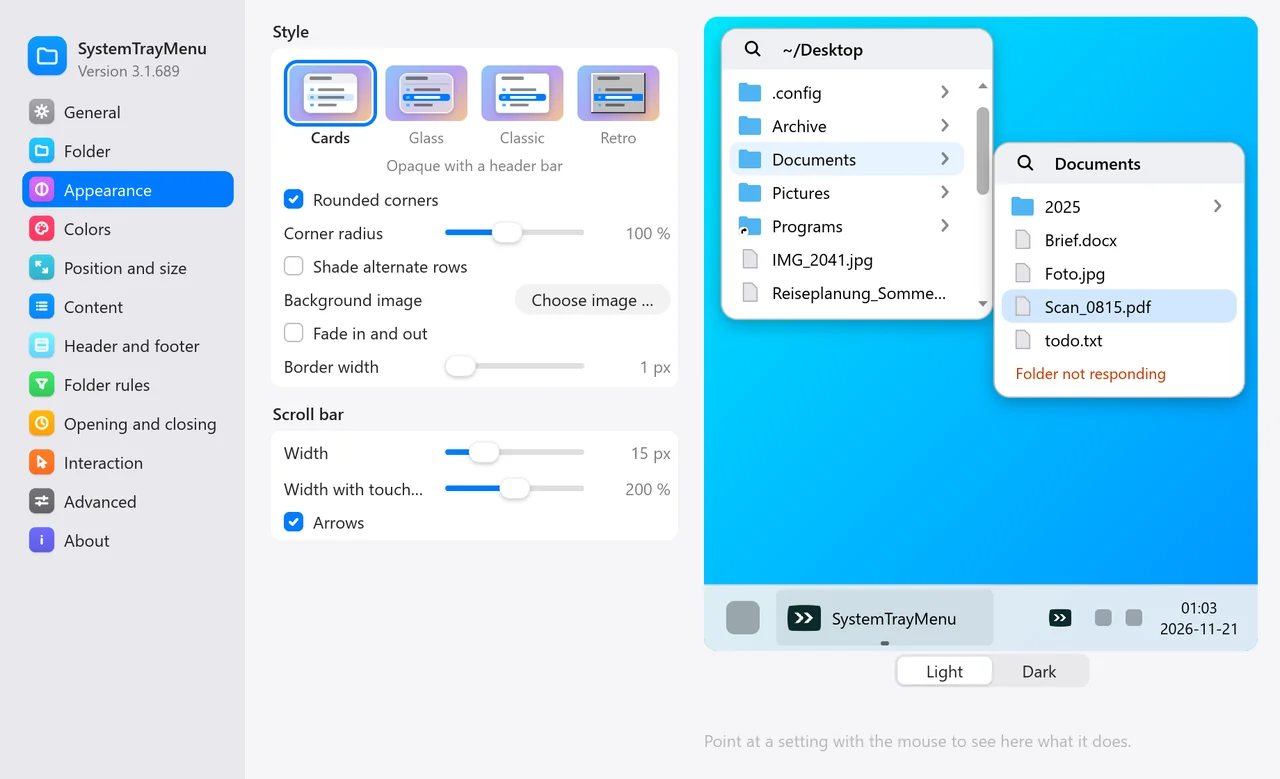
With the keyboard: Tab and Shift+Tab move from field to field, Space or Enter presses buttons, ticks check boxes and opens choice fields. The arrow keys switch the page on the left, choose in choice fields, colors and folder lists and move sliders, Page Up Page Down by a tenth, Home End all the way to the start or end. Esc closes an open choice.
Menus of their own (see Folder rules) have settings of their own: at the top left, “Settings for” chooses the main menu or one of them. With a menu of its own chosen, Appearance, Colors, Position and size, Content, Header and footer, and Opening and closing show its values, and the stage shows the menu with its name. What differs from the main menu carries a small dot; “Like main menu” below it resets it. General, Folders, Folder rules, Operation, Advanced and About apply to all menus and are greyed out then. “Settings …” from the “…” of such a menu and “Settings of this menu …” on the Folder rules page open right with this menu. Changes to a menu of its own take effect when the window closes (the program restarts then).
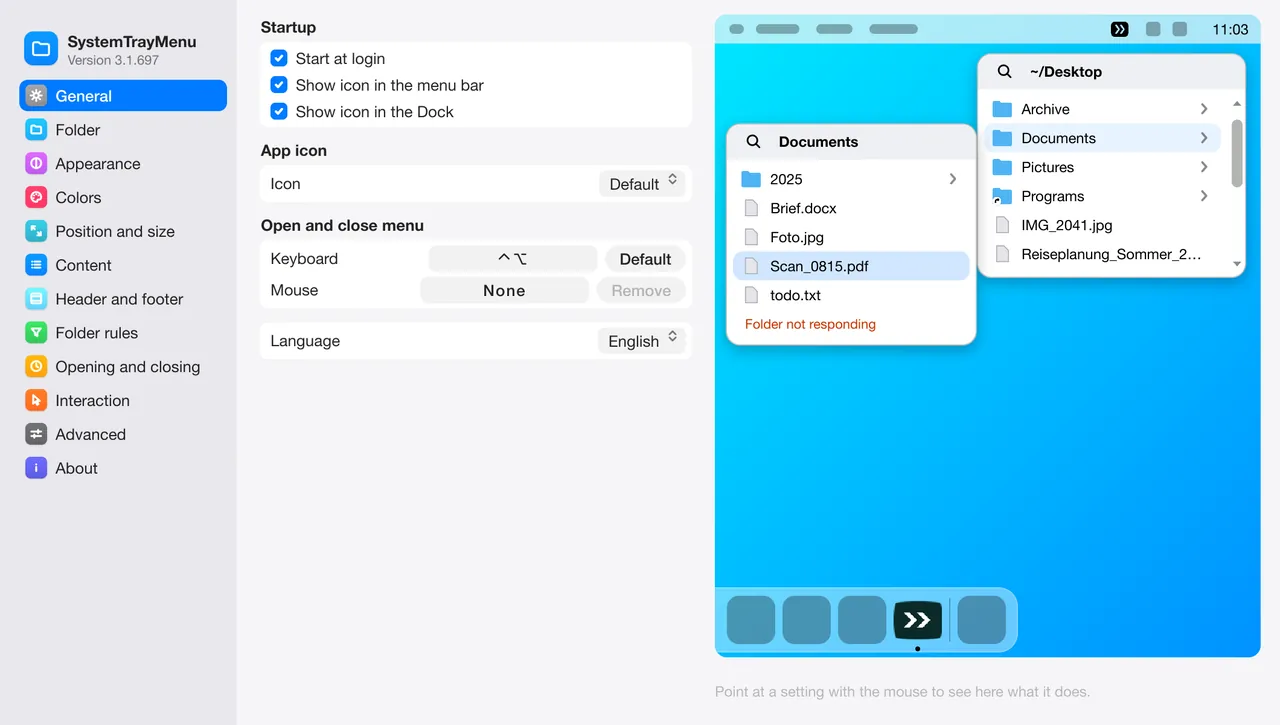
General
- Start at login
- Starts SystemTrayMenu after you log in. off
- Show icon in the notification area
- Mac: “Show icon in the menu bar”. A click on it opens the menu, a right click shows more commands such as Settings and Quit. Without the icon only the shortcut opens the menu; the settings are then under “…” in the menu. Windows: the icon’s menu looks like “…” in the menu, light or dark like the taskbar. on
- Show in the taskbar
- Mac: “Show icon in the Dock”. A click on it opens the menu, and so does switching to it with Alt+Tab (Mac ⌘⇥). Windows: “Close window” on the button only hides the button until the next start, the program keeps running in the notification area; without a tray icon it quits the program. While the settings or the feedback window are open, the button belongs to that window: a click brings it to the front; the menu then opens from the icon in the notification area or the shortcut. The button shows on every virtual desktop. A right click on it shows the entries of the icon’s menu with symbols of their own, on a further menu’s button its menu and folder; what is hidden there is left out here too. Pointing at it brings up just a small card with icon and name instead of a preview; Windows can switch it off only for all programs together. Not on Linux. on
- Show label
- Windows only, while the taskbar button is on or a further menu has one of its own. Off: the button shows just the icon, without the name next to it and in the card when pointing at it. Windows shows names only when “Combine taskbar buttons and hide labels” under Settings → Personalization → Taskbar → Taskbar behaviors is set to “Never” or “When taskbar is full”. on
- App icon
- Default, the icon of the menu folder or a picture of your own; the default icon is v1's. It shows in the notification area, in the taskbar and in the settings window (Mac: menu bar, Dock, window; Linux has no taskbar), folder icon and own picture also at the top of the main menu; takes effect when the settings close. Mac: optionally monochrome in the menu bar like the system icons, else in color. When settings are taken over from v1, the icon of the menu folder if v1 showed it. Default; Mac: monochrome, folder icon and own picture in color
- Keyboard
- Shortcut to open and close the menu: click the field and press the combination, Esc cancels, “Default” restores the default. On Windows other programs can trigger the shortcut too (such as AutoHotkey or nircmd) when they send the whole combination. Shortcuts Windows or another program already uses are not accepted, the field names them as taken; this includes almost all made of Win and a letter or digit, such as Win+T, Win+E and Win+V. Usually free is, for example, Win+Ctrl+T. A key needs Ctrl, Alt or Win with it (Shift alone is not enough, the capital letter could no longer be typed anywhere), only F1 to F24 work alone too. A shortcut already used by a further menu or the shortcut for links is not accepted either. Ctrl+Win · ⌃⌥ · Ctrl+Win+M
- Mouse
- Windows, Mac and Linux under X11, not under Wayland (there no program sees the mouse over other windows). A mouse button opens and closes the menu: click the field and press the middle button or a side button (back, forward), also together with Ctrl, Alt, Shift or Win (Mac: ⌃, ⌥, ⇧ or ⌘); Esc cancels, “Remove” turns it off. Other programs then no longer get this one click, all others stay untouched; with other modifier keys the button works as usual (Ctrl+middle as shortcut leaves the plain middle click as it was). The first time, the Mac asks for permission under System Settings → Privacy & Security → Accessibility; then restart SystemTrayMenu, until then the settings point to it. none
- Language
- 28 languages; “Like the system” follows the computer’s language. like the system
Folder
- Menu folder
- The folder the main menu shows. If on Windows it is your desktop, the menu also shows the shortcuts for all users like Explorer does (folder “Public Desktop”), without listing it among the additional folders; deleting or renaming there needs administrator rights. In
config.tomlthis path, like the additional and further menu folders, may contain environment variables, e.g.D:\Menus\%COMPUTERNAME%for one folder per computer with a shared settings file. Windows writes them%NAME%, Mac and Linux$NAMEor${NAME}, plus~for the home folder. The file keeps the variable, it is resolved at startup. Desktop - Additional folders
- Their contents also appear in the main menu. A click on a folder in the list shows its options: “Include subfolders” (everything right in the main menu; also turns on “Show only when searching”, which you can turn off again), “Files only” (its subfolders do not show as items), “Show only when searching” (appears only while typing). Resting the mouse briefly on one of their entries shows a tooltip naming the folder it comes from, for a shortcut its target below. If the same shortcut is in several folders (same name, same target), it appears only once. On Linux, as in the app menu, the same file name is enough for app launchers: your own one wins over the system’s, even a hidden one, which then shows only with “Show hidden files” (faded). The button at the right below the list adds the folders of the installed apps at once, with subfolders, files only and only when searching: Windows “Add Start menu” (the Start menu of all users and your own), macOS “Add Applications” (Applications, the system’s and your own), Linux “Add applications” (the folders of the app launchers; they are named as in the app menu, “Files” instead of “org.gnome.Nautilus”). This way the search finds every app. none
- More menu folders
- Names the menus of their own, else it reads “No more menu folders”. “Folder rules …” jumps to the page Folder rules: there “As own menu” makes a folder a further menu. none
Appearance
The stage shows how the menu looks with them.
- Style
- Cards (opaque with a grey header bar), Glass (translucent) or Classic (plain like v1: dark or white, without header bar and folder arrows; chosen when taking over the settings of version 1, with its corners) or Retro (like classic Windows: grey with a raised 3D border, square, the selection a bar across the whole row in the accent color). With glass: Regular (on macOS 26 Apple's Liquid Glass material, on Windows 11 it blurs what lies behind the menu), Clear (see-through, without blur), Frosted (on Windows 11 the same blur under a milkier tint) or Off (opaque columns, without a slider), plus the transparency: 5 % almost opaque, 100 % clear glass. The stage shows it while you drag, blurred like the system. A column lying over another one (overlapping submenus, submenus turning at the screen edge) is opaque, so the text below does not show through. Cards · glass Regular, transparency 70 %
- Rounded corners
- Menus with rounded corners (Retro is always square). Off: square menus in every style, the compact context menu on Windows too. On Linux the menus are always square. on
- Corner radius
- How round the corners are, only while Rounded corners is on: 100 % like the style (Cards 12, on Windows 8 like its menus, Classic 8 pixels, Glass like the system’s menus), 25 % barely, 200 % twice as round. The compact context menu on Windows follows. Glass on Windows has just two steps: small corners below 75 %, else the system’s. Not on Linux. 100 %
- Background image
- A PNG or JPG behind the entries of each column instead of the plain color. It fills each column without being distorted, whatever sticks out is cropped; a veil in the background color (the style’s or the one under Colors) keeps the text readable. “Choose image …” puts a copy next to config.toml, so the original may go afterwards; “Remove” deletes the copy. The image is loaded once, when you choose it and at start, not on every opening; large photos are shrunk to 2048 pixels on the long side, pictures over about 64 megapixels are not loaded at all (the plain color stays). It takes the place of the glass: Glass and Transparency are hidden meanwhile. none
- Fade in and out
- The menu opens and closes smoothly. Linux: only with desktop effects (a compositor, KDE and GNOME always have one), otherwise at once. With “Reduce motion” on in the system (Mac: Accessibility → Display, Windows: “Animation effects” off, GNOME: “Animations” off), the menu appears at once and nothing else moves either: the ring and the light sweep while a program starts stand still, the bug does not walk. off
- Border width
- How wide the border around each column is, 1 to 4 pixels; wider sets the menu off more clearly from light windows behind it. From 2 pixels on it grows with the size, and the entries move in to match. Its color is set under Colors → Border. Retro and Linux show the border only with a custom border color. 1 px
- Scroll bar width
- How wide the scroll bar beside the items is, 8 to 40 pixels, 15 out of the box like v1; grows with the size. The stage shows it at once. 15 px
- Width with touchscreen
- Used instead of the scroll bar width when the device has a touchscreen, as a multiple of it (100 to 300 %), so a finger hits it. Windows. 200 %
- Scroll bar arrows
- An arrow at the top and bottom of the scroll bar that scrolls one row. Off: the thumb runs the whole height. on
Colors
The stage shows the menu in the chosen colors; clicking a part of it, such as the header or a folder icon, opens the color picker for exactly that color. The other way round, with the pointer on a color chip or an accent dot a ring shows which part of the stage wears that color; what the menu shows only at times (click border, pinned folder, pressed parts of the scroll bar) appears just then.
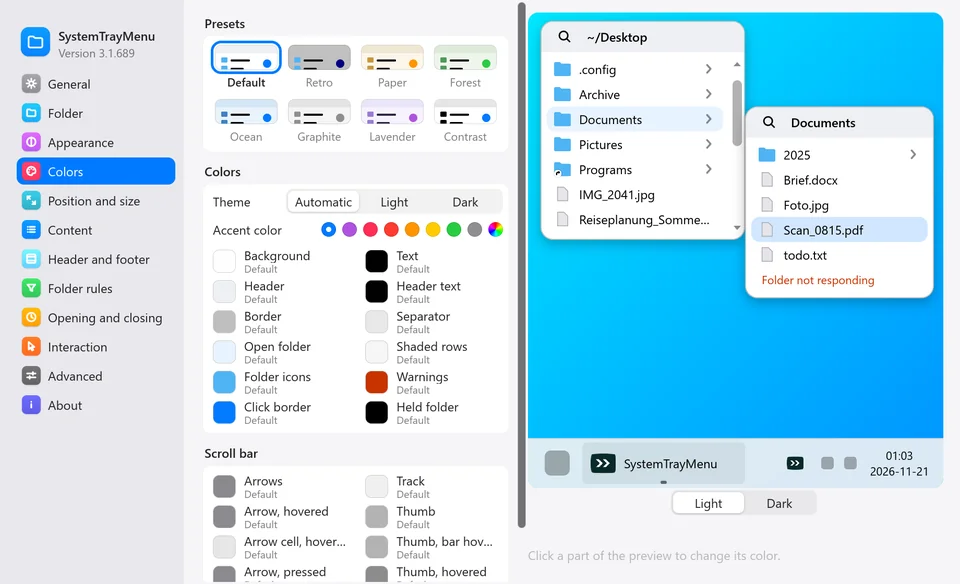
- Presets
- Ready-made color sets as tiles, each a small menu in its colors: Default (the style’s colors, blue accent), Retro (also picks the Retro style, dark blue selection like classic Windows), Paper, Forest, Ocean, Graphite, Lavender and Contrast (black on white or white on black with strong lines, for weak eyes and bright sunlight). One click sets the accent color and all colors at once. The tile of the matching preset is marked; change a color afterwards and your colors stay, with no tile marked. Default
- Theme
- Automatic (like the system), Light or Dark. Every color exists for Light and Dark separately: the swatches and the stage show those of the chosen theme; with Automatic, the Light/Dark switch below the preview picks which. With Automatic, the menu on Windows follows a contrast theme (Accessibility → Contrast themes) in its colors, without glass and transparency. It applies to the menu only: the settings window and dialogs follow the system (on macOS the chosen theme for now), and the stage's bars (taskbar, menu bar, Dock) and its desktop show the system as it is. automatic
- Accent color
- Color of the selection, buttons and switches: one of the color dots or a custom color through the colorful dot at the end, which opens the color picker (then the same for Light and Dark). blue
- Colors
- Eleven colors, each for Light and Dark: Background, Text, Header, Header text, Border, Separator, Open folder (the row whose submenu is open), Folder icons (only folders without an icon of their own), Warnings, Click border (while the mouse button is held down) and Held folder (border around a folder that a click keeps open). Clicking a swatch or its part on the stage opens the color picker: an area and a hue slider to drag, a field for the color code (#rrggbb, for example #1e3a5f, or short #rgb; an invalid code leaves the color as it was) and a palette of grays and colors from light to dark, which the arrow keys and Return work on too. Every choice applies at once and is saved; “Default” goes back to the style’s color, “Done” or Esc closes. Without a text color of your own, text turns black or white by itself so that it stays readable. Without colors of their own, the click border takes the accent color and the held folder’s border the text color. When settings are taken over from v1, background, border, open folder and the two entry borders come along if they were changed there. Default
- Scroll bar colors
- Six colors of the scroll bar beside the entries of a long folder, each for Light and Dark, as in v1: Arrows, Arrow, pressed, Arrow cell, pressed, Track, Thumb and Thumb, dragged. There are no colors just for the mouse over the bar any more: nothing changes there. Clicking a swatch opens the color picker as for the colors. “Default” takes the style’s: shades of the text, in the Classic style v1’s colors. When settings are taken over from v1, the colors that were changed there come along, except those for the mouse over the bar. Default
Position and size
Position
- Open at the mouse position
- The menu appears at the mouse pointer instead of in its corner (see “Open submenus”) or the dragged place. Submenus open to the chosen side there too. off
- Open submenus
- To the left or to the right, in the corner and at the mouse position; submenus switch sides only where there is no room left at the screen edge. Also sets the corner the menu opens in, beside the taskbar or panel on whichever edge it sits: “To the left” on the right near the notification area (Mac at the top below the menu bar), “To the right” on the left like the Start menu. With the taskbar on the left or right, “To the right” opens at its top, “To the left” at its bottom, submenus there always away from it. A menu dragged by its header stays where you put it, its submenus open to the side with more room (see “Also when the menu has been moved”). When settings are taken over from version 1, “To the left” if v1 opened near the notification area. Mac left, else right
- Also when the menu has been moved
- Submenus of a menu dragged by its header open to the chosen side as well instead of the side with more room, and no longer switch sides when it is dragged across the middle of the screen. Deeper submenus still switch sides only where there is no room left at the screen edge. No effect with “Open at the mouse position”. off
- Overlapping submenus
- Submenus lie slightly over the previous one instead of next to it. The offset sets how far each submenu shifts (20–300 pixels). off, offset 150 px
- Gap
- Only without “Overlapping submenus”: space between a menu and its submenu, the same beside every menu, also when the columns fit their names; 0 places them edge to edge as in v1, their borders merging into one line. Up to 20 pixels, grows with the size. 0 px
Size
- Size
- The whole menu: text, rows, icons and width together. Finer, each times the size: icon size, row height and width (width of each column, with “Fit width to names” that of the widest; with “Icons only” it gives the number of icons per line). The system’s text size (Windows: Accessibility → Text size, “Make text bigger” on Windows 10; GNOME: “Large Text”) also enlarges text and rows, not icons and widths, from the next start. 100 %, finer each 100 %
- Row height with touchscreen
- Used instead of the row height when the device has a touchscreen. If Windows reports the touchscreen only later, it applies from the next opening or as soon as a finger touches the menu. Which of the two applies is shown below the sliders. Row height from 70 %, as high as the text. Windows. 150 %
- Maximum height
- Share of the screen height, for each menu level on its own: a submenu may grow taller than the main menu, longer menus scroll. 100 % uses the full height. When taken over from v1 (there a percentage of 450 pixels), its default 100 % becomes 60 % and values above 100 % such as 250 % become 100 %. 60 %
- Minimum height
- The main menu is at least this tall, as a share of the screen height, even with few entries; the space below stays empty. At most the maximum height. 0 %: as tall as its entries. 0 %
- Columns
- When a menu level would be taller than the maximum height, it spreads its entries over as many columns side by side as needed, at most this number, and only scrolls beyond that. The entries run top down, then on into the next column; the arrows left and right switch columns, at the outer column they enter the submenu or go back as usual. Moving entries works there with Ctrl+arrow up/down (macOS ⌘), not with the mouse. 1 = one column that scrolls. 1
- Fit width to names
- Each column as wide as its longest name with icon and arrow, like v1: at most as wide as set under Width, at least as under Minimum width. Off: all columns equally wide. No effect with “Icons only”. on
- Minimum width
- With “Fit width to names” the width of the narrowest column, even with short names; like the width times the size, at most the width. 50 % is the narrowest possible width. 50 %
Content
- Sorting
- Folders first or files first, by name, date or type. “Photo 2” comes before “Photo 10”. “By usage” puts often started items on top, the rest follow as with “Folders first, by name”; starts are only counted while this sorting is set. Applies to all menus; folder rules can sort single folders differently. Folders first, by name
- Arrange entries by dragging
- Put items in place by dragging or with Ctrl+↑ ↓ (Mac ⌘↑ ⌘↓). They stay there, new ones join by the sorting. Off: only the sorting counts, saved orders are kept for later. on
- Save own order in the menu folder
- The file
.stm-reihenfolge.tomlin the menu folder keeps it; if the folder is in a cloud, the order then applies on every computer. Only with “Arrange entries by dragging”. Each further menu folder gets a file of its own; a menu can also switch this on or off for itself alone. off - Save link icons in the menu folder
- A copy of each website icon lies in the folder of the menu the link lies in; if the menu folder is in a cloud, other computers don’t load the icons again; a menu can also switch this on or off for itself alone. on
- Hidden files
- “Like the system” shows them when the file manager does: on Windows following “Hidden items” in File Explorer, protected system files only with “Hide protected operating system files” turned off there; on the Mac like the Finder (⇧⌘.); on Linux like the GTK file chooser and GNOME Files (Ctrl+H). When that changes, the menu follows the next time it opens, on Linux at the latest the time after. “Show” shows all, “Hide” none. Shown ones appear faded. On Linux these include app launchers the app menu does not show. like the system
- Hide file extensions
- “Report” instead of “Report.pdf”, folder names stay complete. Without your own choice as in Explorer (“File name extensions”), as in version 1. Windows as in Explorer, else off
- Shortcut arrow
- Arrow on the icons of shortcuts and links. When settings are taken over from v1, as set there (off by default in v1 1.3). on
- Tooltips on entries
- When the mouse rests on an entry for a moment, a box below it shows the full name, the folder or the target of a shortcut and the file manager’s comment, if the name is cut off, only the icon shows, the entry comes from a subfolder or an additional folder, or it has a comment. Off: never; the tooltips of the buttons at the top stay. on
- Thumbnails
- Pictures show a small preview instead of the file icon. On Linux the one the file manager has already made. off
- Shortcuts to folders as submenu
- Shortcuts, aliases and links to folders open like folders, on Windows also those to the Recycle Bin, This PC, Apps (
shell:AppsFolder) and Windows Tools; Control Panel items still open directly. Off: they stand among the files, a click opens the folder in File Explorer, Finder or the file manager. on - Drives in the main menu
- Every drive as a submenu among the folders, USB sticks and network drives too: on Windows the drive letters, on the Mac the volumes, on Linux what is mounted under
/run/media,/mediaand/mnt. off - Only these file types
- For example
*.pdf | *.docx, empty = all. Folders stay visible, folder rules can filter single folders differently. empty - Show folders only
- Hides all files, even where folder rules show file types; the menu shows only folders to open. off
- Hide
- Files and folders whose name or full path matches,
*and?as wildcards, for example~* | *.tmp. empty - Regular expressions
- For more than
*and?in these fields and the filters of single folders:re:before the pattern, for examplere:^(setup|install).*\.exe$for installers. Upper and lower case do not matter, the pattern may appear anywhere in the name,^and$tie it to the start and end. With a/in it, “Hide” checks the full path. It runs up to the nextre:or the end, so it may contain|itself. If it is invalid, the error shows in red below the field. - Respect .gitignore
- Hides what the
.gitignorefiles in the folder and in the folders above it exclude (up to the folder holding.git), with git’s patterns, also in the search. Git need not be installed for this. As with git, upper and lower case only count on Linux. off
Header and footer
- Title at the top
- Title above each column: in the main menu as chosen under “Main menu title”, in submenus the folder's name. Off: the header appears only while you type, for the search text; the main menu keeps it for “…” while that sits at the top. Without a header the footer moves the menu, and on a touchscreen you can't tap it to search. on
- Main menu title
- “Path” shows where the menu folder lies, such as “Documents › Projects › STM” or “server › share › Sales”; known places like Documents, Desktop, OneDrive or iCloud Drive show by their name. If the column is too narrow, the path shortens down to the folder name; hovering shows it in full. “Folder name” shows only the menu folder's name, “Custom name” the text in the “Name” field (empty: the folder name), which then is the icon's tooltip as well. Further menu folders follow the same choice with their own name; submenus always show their folder's name. Path
- Double-click on folder name
- A double click on the folder name at the top opens that column's folder in Explorer or Finder (Linux: the file manager), in the main menu as in every submenu. Dragging the header still moves the main menu. Only with “Title at the top”. on
- Search text
- Shows the search text as you type and, at the top left, the magnifier that opens the search field. There is no search field that is always visible, the search starts with the first key. Off: search still works, just without display and without magnifier. on
- Search text position
- At the top in place of the folder name, at the bottom below the list (close to the taskbar, like the Start menu) or automatic: at the bottom when the menu opens upwards. top
- Count at the bottom
- “3 folders, 5 files”, notices still appear. off
- Icons only
- Icons without names, as a grid in every column: as many per line as the width leaves room for; a separator starts a new line. The name of the selected item shows at the bottom, the search shows only the matching icons, a submenu opens at the height of its folder icon. off
- Buttons
- Show or hide “…” in the main menu, “Open folder” in submenus and “Send feedback” (the bug at the bottom of the main menu; off: still under “…”), plus the place of “…” under “Function buttons”: top, bottom or automatic (bottom when the menu opens upwards). As in version 1, submenus show only “Open folder”, in the same place; it opens exactly that submenu’s folder. Whoever had “…” off before the switch for “Open folder” existed has that button off there too. Without “…” you open the settings from the icon or with Ctrl+, (Mac ⌘,); so it only hides while the icon shows in the notification area (Mac: in the menu bar), otherwise it stays. Whoever had all four buttons (Settings, Pin, Open folder, Restart) off up to version 3.1.626 has “…” off after the update as well, whoever had “Open folder” off that button too. Only the file hides entries of “…” (
tray_menu_hidden); with all of them gone, “…” goes too. With folder name and search text off and “…” at the bottom or gone, the header goes away entirely (in submenus “Open folder” counts for this); typing still searches. on, top
Folder rules
- Folder rules
- On the left every folder with rules of its own, once, followed by what it has: own menu, filter, own names, own order. “+” picks another folder, “−” removes all rules of the folder after asking. Below, the rules of the selected folder in four groups: Menu, Content (with search), Appearance (with own order) and Names; they apply in every menu that shows it. In the menu, right click → “Rules for this folder …” (Windows) opens the page with the folder. none
- As own menu
- The folder gets a menu of its own, opened from the icon’s context menu, where it shows its folder icon. Below, it gets a name of its own (empty = folder name), an icon (“Like the app icon”, “Icon of the folder” or “Custom image”), if you like its own tray icon, on Windows only its own taskbar button with the menu’s name and icon (a click opens it, the label follows “Show label”; right-click “Pin to taskbar” keeps it in its place, and a click on it starts STM with this menu), and its own shortcut. The “Add programs menu” button below the list adds a “Programs” menu that shows all installed apps in one alphabetical list, without folders: on Windows from both Start menus, on macOS from Applications, System Applications and your own, on Linux from the launcher folders. With its own shortcut and “Fuzzy search” it becomes an app launcher: press the shortcut, type “vsc”, Enter. Settings of its own per menu are set with “Settings for” at the top left (see Settings); in
config.tomlthey sit below its[[other_roots]]entry in a table[other_roots.settings]. The content holds for the menu’s folder and everything below it, also where the main menu shows it; a folder rule comes first. Width and height dragged at the edges of such a menu go there as well, the main menu keeps its size; each menu remembers its own place, and without one it opens like the main menu. off; folder name, like the app icon - Content, appearance and search
- A folder shows only certain file types (programs, documents, pictures, music and videos or your own), sorts its own way and shows or hides file extensions, also in its subfolders. “Without own icon” hides entries showing the generic icon of their type or leaves them to the search, such as services and console tools in a programs folder (Windows: programs without an icon, Mac: apps without an icon file, Linux: launchers without “Icon=”). “Also hide” hides further items by name in this folder and below, for example “Old | *.bak”, in addition to “Hide” under Content. Values the folder does not set read “As everywhere”. Right click → “Hide in menu” adds an entry's name here. “Fuzzy search” and “Also search subfolders” apply to searching in this folder and below, say fuzzy only in a further menu and exact in the main menu; “As everywhere” takes the general setting. As everywhere
- Custom names and icons
- The entries of this folder with a name or icon of their own. Changes only what the menu shows, the file stays as it is. Windows: also by right click → “Name and icon …”. none
- Own order
- Shown when entries of the folder were moved in the menu. “Reset” brings back the sorting; in the menu also by right click → “Reset order”.
Opening and closing
- Open submenu after
- How long the mouse has to rest on a folder; a click opens it at once. 120 ms
- Close after
- How long after the mouse left the menu (when the menu has no focus). 400 ms
- Close when focus is lost
- When another window becomes active. Off: the menu turns see-through and only closes when the mouse leaves it (“Close after”). Stays on when settings are taken over from v1, even if the menu stayed open there (v1 default). on
- Close after opening an item
- Otherwise the menu stays open for the next item. off
- Pin on open
- Every open starts as after “Pin” or Ctrl+P (see Pinning): the menu never closes by itself. “Pin” in “…” releases it until the next open. off
- Reopen after closing the program
- The menu appears again as soon as the window opened from it is closed, as it did in version 1. Not when the window is minimized or another program was used in between. Windows only. off
Interaction
- Open files with one click
- Off: double click needed. With the preview open, a click only shows the file there. on
- Only for these file types
- Only with “Open files with one click”: file extensions separated by commas, e.g. “exe, bat, cmd” (Mac “app”, Linux “desktop, sh”). Only these files open with one click, all others with a double click. Shortcuts count by their target, “lnk” takes all of them. Folders follow “Open folder in file manager”. Empty: all files. empty
- Open folder in file manager
- Mac: “Open folder in Finder”. In Explorer or Finder with a double click, with one click as in version 1 (the click also opens it as a submenu) or never. With a double click
- Open folders with
- Another program instead of Explorer or Finder, e.g. OneCommander, Total Commander, Directory Opus or Path Finder: “Choose program …”, “Reset” goes back to Explorer or Finder. Applies to folders from the menu, the folder button, Enter and the double click on the folder name; files still open with their own program. If the program does not start (moved, uninstalled), the folder opens as before. Explorer or Finder
- Arguments
- What the program gets in addition,
%1stands for the folder; empty or without%1the folder goes last. Examples: OneCommander empty; Total Commander/O /T(new tab in the running window); Directory Opus withdopusrt.exeas program/cmd Go "%1" NEWTAB. Mac: a program from “Applications” gets the folder to open, leave the arguments empty. empty - Can select entries
- On: “Show in file manager” (Mac “Show in Finder”) goes to the program too, with the file instead of the folder; most file managers then select it. Off: Explorer or Finder do that. off
- Also search subfolders
- The search also finds items in subfolders, as deep as preloaded (Advanced → Preloading; while that is “Off”, the switch is locked). Off: only in the open menu, as in version 1. off
- Fuzzy search
- The search also finds abbreviations, names with typos and the letters with gaps, below the exact hits (see Search → Fuzzy). Off: only what is in the name exactly as typed, as in version 1. off
- Drag entries
- Dragging out and moving by dragging. on
- Copy or move
- What happens to dragged files and folders, when dropping in as when dragging out: “Automatic” moves on the same drive and copies elsewhere, as Explorer and Finder do; or “Copy” and “Move”. When dropping in it is preselected in the window, keys held when you let go come first (Dragging). Automatic
- Ask for links
- When a link is dropped in, suggest a name, let you choose the target folder (STM remembers it per folder) and warn when the same page is already in the menu. Off: the link is saved at once under the suggested name; if the same page is already in the folder, the menu marks the one there. on
- Shortcut for links
- Keyboard shortcut that brings the copied web address into the menu: it opens the menu with the link dialog, the target folder is the one last chosen for links. The page title gives the name, for a home page the name of the site. Without a web address on the clipboard, the menu says how links get in. Without a shortcut, links only get into the menu by dropping them from the browser. The field does not take a shortcut that already opens a menu. Takes effect after the next start. none
- Ask for files
- When files and folders are dropped in, ask: Copy, Move or Cancel. Off: “Copy or move” applies at once; if a name in the folder is already taken, it asks anyway. on
- Classic context menu
- The full Explorer menu like in Windows 10 instead of the compact one in the style of Windows 11. Windows only. off
- Preview with the space bar
- Automatic: the preview of QuickLook if it is running, else the built-in one. Always built-in: the own one beside the menu even with QuickLook. Off: Space shows no preview and types into the search as in version 1, “Preview” is left out of the context menu. Windows only. Automatic
Advanced
- Preloading
- Folders are read in the background at start so menus appear at once and the subfolder search, when turned on (Interaction → Search), knows them: this many folder levels and at most this many items, further folders are read only when they open. “Off”: every folder only when it opens, “At most” disappears and the subfolder search is locked. 3 levels · 50,000
- Show preview and help
- The group Settings window: shows the stage on the right with its demos and below it what the setting under the pointer does. Off: the settings take the whole width, only Appearance and Colors keep the preview, without demos, because a click on the menu there picks a color. on
- New versions
- Install automatically: downloads new versions, checks their signature and swaps itself when the menu is closed. Installed with the MSI, it installs the new MSI instead, so Windows shows the right version under Apps. From the Microsoft Store, the store updates. On a Mac where SystemTrayMenu was built with “Installieren”, macOS asks for the login password on every update: there at most one update a day comes, announced first with “Now” or “Later”; “Check for updates” installs right away. Notify only: also checks hourly but downloads nothing; a new version shows once at the bottom of the menu (“Version … available · Install in the settings”, a click opens the settings), and it is installed only with “Install now”. Off: checks only when you press “Check for updates”. Install automatically
- Get pre-releases
- Only with “New versions” set to “Install automatically”: also fetches the newest tested development build every night, meant for testers. Turned off, the version stays until a newer release comes out; it never goes back to an older one. off
- Check for updates
- Button in the same group: looks for a newer version right away, also with “Notify only” and “Off”, and shows the result below it. Once “Notify only” has found one, it reads “Install now”. A version it finds is downloaded and checked like the automatic search does; SystemTrayMenu restarts once the settings and the menu are closed. Pre-releases only with “Get pre-releases” on.
- Log timing
- Writes into the log how long SystemTrayMenu takes to start and preload, from the shortcut to the menu and from a click to the opened program. on
- Send error reports
- After a crash a report goes to the developer, without file or user names. off
- Log
- “Open …” shows the app’s messages and errors.
- Menu position
- “Reset” forgets where you dragged the menu: it opens below the menu bar again (Mac) or at the taskbar, in the corner set by “Open submenus”. Applies to the main menu; another menu folder goes back with “Reset menu position” in its “…” menu.
- Configuration file
- Shows where the settings are stored (
config.toml) and opens it for editing. - Back up settings
- Export and import, also the settings of version 1. Both open the folder picked last time.
- Settings from version 1
- Only on Windows and only when settings of version 1 are on this computer: “Take over …” lists them as at the first start.
- Default settings
- “Restore” sets all settings back to the defaults. Kept are the menu folder, the additional folders and more menu folders, “Only these file types”, “Show folders only”, “Hide”, “Respect .gitignore”, the filters of single folders, custom names and icons, “Start at login” and the menu position. The own order stays saved and applies again once the sorting “Own order” is chosen. Until the next change, “Undo” brings back the previous settings. Everything takes effect after closing the settings.
About
- Version
- With “What’s new?” (What’s new in SystemTrayMenu) and “Help” (this page), next to them support@hofknecht.eu for a mail to support. The “Send feedback” window names the same address. The mail already holds version and system and a few short questions.
- License
- Who the license is for, or how many trial days are left. The trial is free and ends by itself, no need to cancel. “Paste” or “Choose file …”, checked without internet. Without a license, “Buy a license” opens the shop; “Lost your license?” sends it again to the email address of the purchase. From the Microsoft Store: “Bought in the Microsoft Store”, otherwise “Buy in the Microsoft Store” with the note below that licenses from hofknecht.eu only work in the edition from the website. In the edition from the website on Windows, without a license, a note below says that purchases in the Microsoft Store only work in the Store edition.
Only in the configuration file
For use in companies and for troubleshooting: these lines are not in the settings window, so nobody switches them back. Add them to config.toml (see “Configuration file”) or, for all users, to the policy file; they apply after “Restart”.
settings_locked = true- Locks the settings: no “Settings …” in the icon’s menu and in “…”, no “Name and icon …” and “Rules for this folder …” in the right-click menu, no menu on right-clicking the header and footer. Undone only by editing the file. off
tray_menu_hidden = ["restart", "quit"]- Leaves entries out of the icon’s menu, the taskbar button’s (Windows) and “…” in the menu:
pin(Pin, only in “…”),open_menu(Open menu),other_menus(further menus),open_folder(Open folder, also the button at the top of submenus),settings,reset_position,feedback,restart,quit. Their keys keep working; with all entries of “…” left out, “…” goes too. empty header_buttons = ["pin", "settings"]- Entries of “…” that sit as buttons of their own left of it, in the order of “…”:
pin,open_folder,settings,reset_position,feedback,restart,quit(names as intray_menu_hidden). They are then gone from “…”; once all are there, “…” is gone. In the menu: right-click the row in “…” → “As a button in the header”, back with a right click on the button → “Hide”. empty root_name = "Company"- Own name of the main menu: tooltip of the icon and title of the first column while “Main menu title” is set to “Custom name”; a name set here chooses that by itself, and when a policy fixes it, the choice is locked too. Empty: “STM” resp. the name of the menu folder. empty
debug_hotkey = true- With a shortcut of modifier keys only, writes every modifier key to the log and what the program made of it, to find rare misses. off
For companies: policy file
To roll SystemTrayMenu out to many computers, fix settings for all users without touching their config.toml: with a file policy.toml in a folder only administrators can write to.
- Windows
%ProgramData%\SystemTrayMenu\policy.toml, usuallyC:\ProgramData\SystemTrayMenu\policy.toml. Create the folder and let users only read it (by default, all users may write to ProgramData).- macOS
/Library/Application Support/SystemTrayMenu/policy.toml- Linux
/etc/systemtraymenu/policy.toml
Same format as config.toml, with every setting from there and the lines above. What the policy says applies instead of the user’s own setting, everything else stays their choice. Their config.toml does not change: without the policy, their values apply again. In the settings window, fixed settings show faint and locked, with the hint “Set by your organization”. Takes effect on the next start. A line with an error is left out, the others apply; the log names both. Example:
settings_locked = true
root_name = "Company menu"
tray_menu_hidden = ["feedback", "restart", "quit"]
root = '%USERPROFILE%\Desktop\Company'
auto_update = false
Folder paths may contain environment variables, on macOS and Linux e.g. '$HOME/Company'.
There is deliberately no password for the settings: it could be bypassed, a file only administrators can change cannot.
Start parameters
For login scripts, e.g. per user group. If SystemTrayMenu is already running, it takes over the call.
--path <folder>- Sets the menu folder and saves it, like “Set as menu folder” in the file manager. Folders a user may not read are missing from the menu anyway.
--config <file>- Uses this file instead of
config.toml, also after restarts and updates. SystemTrayMenu keeps the menu position, order and license next to it, so the file must be writable for the user, e.g. one copy per user. --open,--settings- Opens the menu or the settings right away.
Differences per system
| Windows | macOS | Linux | |
|---|---|---|---|
| Icon | Notification area of the taskbar | Menu bar, top right | Notification area of the panel |
| Icon’s menu | like “…” in the menu, light or dark like the taskbar | system menu | panel menu; GNOME shows the icon only with “AppIndicator” |
| Shortcut | Ctrl+Win | ⌃⌥ (Control and Option) | Ctrl+Win+M (Ctrl+Win alone only under X11) |
| Menu appears | bottom left above the taskbar (beside it at the top, left or right), submenus to the right | top right, submenus to the left | bottom left above the panel, top left with a top panel (GNOME), submenus to the right |
| Right click | Explorer menu (Windows 11 style or classic), on free space the folder's menu with New separator | like in Finder, also with Ctrl-click; on free space New folder, New separator, Paste, Show in Finder | Open, Show in file manager; on free space New folder, New separator, Paste, Show in file manager |
| Files by key | trash, copy, cut, paste, rename | trash, copy, paste, rename | trash, copy, cut, paste, rename |
| Preview | Thumbnails, Space and the context menu for QuickLook if it is running, else an own preview (adjustable) | Thumbnails, Space for Quick Look | Thumbnails from the file manager, Space for the GNOME previewer (Sushi), else an own preview |
| Drop in | Files and links; Ctrl copies, Shift moves without asking | Files and links; ⌥ copies, ⌘ moves without asking | Files and links; keys held when you let go have no effect |
| Drag out | As set, “Automatic”: moves on the same drive, else copies; Ctrl copies, Shift moves; with the right mouse button Explorer asks | As set, “Automatic”: moves on the same volume, else copies; ⌥ copies, ⌘ moves | Copies, with Shift moves; with “Move” moves, with Ctrl copies; with the right mouse button the file manager asks if it can; on KDE Plasma 5 with Wayland only into X11 programs |
| Contrast theme | Menu in its colors, without glass (theme Automatic) | – | – |
| Touch | Swipe, own row height, search with the touch keyboard | – | Swipe |
| Mouse wheel | each notch scrolls as many items as “lines to scroll at a time” in the mouse settings, “one screen at a time” scrolls a page | 3 items per notch, trackpad and Magic Mouse smoothly | 3 items per notch, touchpad smoothly |
| Choosing a file | Explorer dialog | Finder dialog | the desktop’s dialog (through the portal), else zenity, kdialog, yad or qarma |
| Start with the computer | Task “At log on” | Login item | Autostart entry |
| Program lives in | %LOCALAPPDATA%\ | “Applications” | ~/.local/bin |
| License for all users | %ProgramData%\ | /Library/ | /etc/ |
| Log | %LOCALAPPDATA%\ | ~/Library/Logs | ~/.local/ |
Linux with Wayland: SystemTrayMenu registers the shortcut with the system (KDE, GNOME 48 and later), you can then change it in the system settings under shortcuts. Portable on every system: with a config.toml next to the program it uses that one, for example on a USB stick. Windows from the Microsoft Store: Windows often keeps the configuration file and the log in the package folder (%LOCALAPPDATA%\), File Explorer then does not find them at the usual place. The buttons under Settings → Advanced (Maintenance → Configuration file, Diagnostics → Log) open the right place.
Common problems
I cannot see the icon.
Windows: it often hides under the ^ arrow in the notification area, drag it from there into the taskbar or switch it on under Settings → Personalization → Taskbar (the hint at the first start opens that page with “Taskbar settings”). Mac: with a full menu bar, icons disappear behind the camera notch; from macOS 26 also check under System Settings → Menu Bar that SystemTrayMenu is allowed. Linux with GNOME: icons in the notification area need the “AppIndicator” extension (included with Ubuntu). The shortcut always opens the menu too, and so does starting the program again.
The shortcut does nothing.
Maybe another program uses the same combination. Choose another one under Settings → General → Keyboard. SystemTrayMenu keeps your choice and tries again at the next start. Shortcuts made of modifier keys only (Ctrl+Win, ⌃⌥) fire when you let go, and only if no other key was pressed with them. Linux with Wayland: the system asks once whether to allow the shortcut. Shortcuts made of modifier keys only do not work there, because under Wayland no program sees the keys of other windows; use a combination with one more key, such as Ctrl+Win+M. In an X11 session they work; if one is chosen there, Wayland uses Ctrl+Win+M.
Mac: “Apple could not verify …”
Open it once via System Settings → Privacy & Security → “Open Anyway”. Step by step: guide in the FAQ.
Windows: browser, antivirus or SmartScreen blocks SystemTrayMenu
Since version 3.1.554, the EXE from hofknecht.eu is digitally signed (publisher Markus Hofknecht); the installer (MSI) is too from version 3.1.569 on. The version from the Microsoft Store gets no warning from SmartScreen or Edge, because Microsoft checks and signs it; you can buy it there with your Microsoft account. Browsers, antivirus programs and SmartScreen rate apps by how well known they are. The signature helps with that, but it takes time: the certificate is new, and every new version starts out unknown. On top of that, SystemTrayMenu does things they watch for (global shortcut, autostart, self-update). So they warn, even though nothing harmful is inside. Microsoft Edge holds back the download (“… isn’t commonly downloaded”): in the downloads list (Ctrl+J), click “…” next to the file, choose “Keep”, then “Show more” and “Keep anyway”. Google Chrome blocks the download (“Suspicious download blocked”): click the download icon at the top right, then the arrow › next to the file, and download it anyway there. SmartScreen (“Windows protected your PC”): click “More info”, then “Run anyway”. Avast and AVG move the file to quarantine (usually under “Protection”): there, click “…” next to SystemTrayMenu, choose “Restore and add exception” and start the app as usual. Kaspersky (Standard, Plus, Premium) may delete the file right away. On first start, SystemTrayMenu copies itself to %LOCALAPPDATA%\Programs\SystemTrayMenu, and updates land there too. So create this folder first (type %LOCALAPPDATA%\Programs into the address bar of File Explorer and add the folder SystemTrayMenu there) and add it as an exclusion in Kaspersky: “Settings” at the bottom of the main window, then “Security settings”, “Exclusions and actions on object detection”, “Manage exclusions”, “Add”, choose the folder with “Browse”, status “Active”, “Add”. Then move the downloaded file into this folder and start it there. To get back a file that was already deleted, open “Security”, “Quarantine” after adding the exclusion and click “Restore”. Bitdefender moves the file to quarantine. First add the same folder as an exception (create it as described above if it is missing): “Protection”, “Open” under Antivirus, “Settings” tab, “Manage Exceptions”, “Add an Exception”, pick the folder with the magnifying glass, turn on the Antivirus switch, “Save”. Then open “Manage quarantine” on the same tab, select the SystemTrayMenu entries and click “Restore”. If the file is back in your Downloads folder, move it into the SystemTrayMenu folder and start it there. Norton (Norton 360, Norton AntiVirus Plus) stops SystemTrayMenu, often after an update, or moves the file to quarantine. Here too, first add the same folder as an exclusion (create it as described above if it is missing): “Security” on the left, “Open” on the “Scans” tile, “Exclusions” tab, “Add” or “Add Exclusion”, pick the folder with the browse icon, “OK”, “Add”. This way Norton also leaves the updates alone: the exclusion applies to Auto-Protect and Behavioral Protection (formerly SONAR), and Download Intelligence does not check anything downloaded into this folder. If Norton only stopped SystemTrayMenu, just start it again. If the file is in quarantine: “Security” on the left, “Security History”, choose the “Quarantine” category in the “Recent History” list, click “…” next to the SystemTrayMenu entry, choose “Create exception & restore” and confirm with “Yes”. If it is in your Downloads folder afterwards, move it into the SystemTrayMenu folder and start it there. With other antivirus programs, restore the file from quarantine and add it as an exception. Only download SystemTrayMenu from hofknecht.eu; then the exception is safe. Its checksum in SHA256SUMS.txt shows whether your file is unchanged; you check your file in PowerShell with Get-FileHash and the file name. Please report a false alarm to support@hofknecht.eu, ideally with a screenshot of the message or the detection name (such as “Win64:Malware-gen”).
The menu should look like in version 1.
Settings → Appearance → Style → “Classic”: plain, dark or white, without header bar and folder arrows. Under Position and size → Size, make “Size” and “Row height” smaller, version 1 was more compact. Under Header and footer, turn off “Title at the top”, version 1 showed the folder’s name only when asked to. Under Interaction → Clicking, set “Open folder in file manager” (Mac: “Open folder in Finder”) to “With one click”, then a click opens the folder as in version 1 and unfolds it as a submenu at the same time. Under Interaction → Search, leave “Also search subfolders” off, then the search looks only in the open menu, as in version 1. Quicker on Windows: Settings → Advanced → Maintenance → “Settings from version 1” → “Take over …” takes the settings of version 1 and picks the style “Classic” (see Get the settings from version 1).
The menu is gone or half off the screen.
Right-click the icon → “Reset menu position”, or Settings → Advanced → Maintenance → Menu position.
The bottom of the menu says “Some settings could not be read”.
The file config.toml is damaged, usually after editing it by hand or an interrupted save. SystemTrayMenu takes over everything it can still read; the settings named are back at their defaults. The damaged file sits next to it as config.toml.fehlerhaft, a click on “Show copy” shows it in the file manager. Set the named settings again or copy the lines over from the copy. The note appears only once.
A long submenu scrolls although the screen has room.
How tall each menu level may grow is set under Settings → Position and size → Size → “Maximum height”; a submenu may grow taller than the main menu. The default is 60 % of the screen height. Set it to 100 %, then a submenu only scrolls when it has more entries than fit on the screen. Version 1 counted the height in percent of 450 pixels (e.g. 250 %), here it counts in percent of the screen height, so 100 % is the most. Before version 3.1.231 a submenu stayed as tall as the main menu when the menu hung at the bottom of the screen (e.g. above the taskbar); the new version arrives by itself (How do I get the new version?).
Linux: “No file chooser” instead of a dialog to choose from
SystemTrayMenu uses the desktop’s file dialog (through xdg-desktop-portal), else zenity, kdialog, yad or qarma. If none is there, install the zenity package with your package manager (e.g. sudo apt install zenity). The license works without one: “Paste” the text from the purchase mail, or drop the .lic file onto the settings window.
Submenus do not open, the bottom says “Trial over”.
After 14 days only the main menu opens without a license. In the last 3 days the bottom of the main menu shows how many days are left, afterwards “Trial over”, each with the price (€2.99, one-time); a click on it or on the note at a locked submenu opens the shop (not from the Microsoft Store). Buy a license and enter it under Settings → About. Already bought? Send the license again. From the Microsoft Store: buy it there, Settings → About → “Buy in the Microsoft Store”; the purchase counts without a restart.
Do I have to cancel the trial?
No. The trial is free and not a subscription: it ends by itself, there is nothing to cancel. Afterwards only the main menu opens without a license. The license is no subscription either: you pay once. The same goes for the Microsoft Store version, Microsoft charges nothing after the trial.
Windows: both the Store edition and the downloaded edition are installed.
Only one SystemTrayMenu runs per user. If you start the other edition while one is running, a note tells you which one runs, and the one you started quits again. To switch, close the running one with “Quit” in its tray menu, then start the other. Each has its own settings, and a purchase in the Microsoft Store applies to the Store edition only. The simplest way is to uninstall the edition you do not need. Older versions quit without a note.
Windows: I bought a license on hofknecht.eu, but the Store edition has no “Paste”.
Licenses from the shop on hofknecht.eu only work in the edition from the website. The Store edition only takes purchases in the Microsoft Store and therefore has no field to paste a license. To switch: if you want to keep your settings, back them up first (Export …), as both editions have their own. Then close SystemTrayMenu with “Quit” in its tray menu, uninstall the Store edition (Settings → Apps → SystemTrayMenu → Uninstall), download SystemTrayMenu from hofknecht.eu and install it. Finally Settings → Info → License → “Paste” with the text from the purchase email, or drag the .lic file onto the settings window.
Windows: I bought it in the Microsoft Store, but the edition from the website doesn’t recognize the purchase.
Purchases in the Microsoft Store, including those of version 1, only work in the Store edition. The edition from the website doesn’t know the Store and only takes licenses from the shop on hofknecht.eu. To switch: if you want to keep your settings, back them up first (Export …), as both editions have their own. Then close SystemTrayMenu with “Quit” in its tray menu, uninstall the edition from the website (Settings → Apps → SystemTrayMenu → Uninstall) and install SystemTrayMenu from the Microsoft Store, signed in with the Microsoft account of the purchase. Finally import your settings again; Settings → Info → License then shows “Bought in the Microsoft Store”. If you’d rather stay with the edition from the website, you need a license from the shop on hofknecht.eu.
A file is missing from the menu.
Check “Hidden files”, “Only these file types”, “Show folders only”, “Hide” and “Respect .gitignore” under Settings → Content, and the filters under Settings → Individual folders. Shortcuts of the other system (Windows shortcuts on the Mac, Mac aliases on Windows) are hidden because they do not work there. New files show up right away.
Where is the search field?
The magnifier at the top left of the menu opens it (Ctrl+S, Mac ⌘S). It is quicker without: with the menu open, just start typing, the search text appears at the top in place of the folder name or, depending on “Search text position”, at the bottom below the list (Settings → Header and footer → “Search text”). Without a keyboard, for example on a touchscreen under Windows, tap the magnifier or the header of a column: the touch keyboard comes up. On the first days, “Just type to search” at the bottom of the main menu reminds you, until your first search.
The search does not find a file in a subfolder.
By default it only searches the open menu: turn on “Also search subfolders” under Settings → Interaction → Search. It then looks as deep as preloaded: raise “Folder levels” or “At most” under Settings → Advanced → Preloading. Or open the folder and type there.
“Target not found” or “Target does not respond”
“Target not found – moved or deleted?”: the shortcut points to something that is no longer there. Create the shortcut again or delete it. “Target does not respond – network drive unreachable?”: connect the network drive or VPN, the menu does not wait for it and stays usable.
The menu closes too fast or stays open too long.
Settings → Opening and closing. To keep it open longer: pin it with Ctrl+P (Mac ⌘P).
SystemTrayMenu does not start with the computer.
Settings → General → Startup → “Start at login”. Mac: also allow SystemTrayMenu under System Settings → General → Login Items.
How do I get the new version?
By itself: the app downloads it in the background and swaps itself once the menu is closed. Afterwards the menu says “Updated to … · What’s new?”. If the new version crashes right after the restart, the previous one puts itself back and says so in the menu: “Update … crashed, the previous version runs again” (not with the MSI installation). All changes: What’s new in SystemTrayMenu.
Windows: Smart App Control blocks SystemTrayMenu after an update
Since version 3.1.554, SystemTrayMenu from hofknecht.eu is digitally signed (publisher Markus Hofknecht), and Smart App Control lets validly signed programs run; what follows mainly concerns older versions. Smart App Control (Windows 11) only starts an unsigned program once Microsoft knows it to be safe; it often does not know a version that just came out. So SystemTrayMenu first starts every new version once as a test: if Windows blocks it, the current version keeps running and tries again at the next start. You can close the notice from Windows; there is no need to turn off Smart App Control. To stop seeing it, set “New versions” under Settings → Advanced to “Notify only” or “Off”. Older versions were gone after such an update; after restarting the computer SystemTrayMenu usually starts again. Without blocks: the version from the Microsoft Store, signed by Microsoft and updated by the Store (bought there with your Microsoft account; a license from hofknecht.eu does not apply there).
Take the settings to another computer or get them from version 1
Settings → Advanced → Maintenance → Back up settings: “Export …” and “Import …” on the other computer. At the first start SystemTrayMenu asks by itself whether to take over the settings of version 1, and asks again at every start until you answer with “Take over” or “Don’t take over” (closing the window doesn’t count). The update from version 1 in the Microsoft Store takes them over without asking when all their folders exist and their file is undamaged. On Windows “Take over …” at “Settings from version 1” (just below) brings the choice back any time; “Import …” also takes its file (user-….config, for the portable version user.config next to the EXE). The file may be saved in any encoding (UTF-16 or ANSI too). From a damaged file everything readable comes along; what does not (missing folders, unreadable values) the window shows before saving. Folders the portable version 1 gave relative to its own folder are found next to its user.config; if SystemTrayMenu itself is portable, folders next to its config.toml stay relative and move with the USB stick.
How do I uninstall SystemTrayMenu?
Windows: Settings → Apps → SystemTrayMenu → Uninstall. Mac: quit the program and drag it from “Applications” to the Trash. Settings and license stay for a later installation.
Report a bug or ask for something
Right-click the icon → “Send feedback …”, with the log and up to three images if you like (drag them onto the window or pick them with +). “What is sent along” shows beforehand exactly what goes with your text: version, system, language and the log, with home folder, user name, computer name and mail addresses replaced. From 3600 characters on the window shows a counter: anything past 4000 does not arrive. Leave your mail address and you get an answer; tick “Remember the address for further feedback” and it is filled in next time (kept only on this computer). If a newer version is out, the window first asks you to try it: the bug may be fixed there already. Or mail support@hofknecht.eu.
Nothing found? Write to support@hofknecht.eu. What is new: What’s new in SystemTrayMenu.